
|
    Professional Email Marketing Solutions |
Google Analytics Event Tracking – Measure Calls to Action
Our experts came across these previously published articles we thought you would find useful.
These are re-posts from the original sources. Author: eugenoprea
Do you have at least two places on your website where people can signup for your newsletter?
Are you wondering which one performs better and gets more subscribers to your list?
If this is your case then you can learn how to use Event Tracking in Google Analytics to monitor your calls to action (a signup form, an affiliate banner or a banner that leads to your product website or page).
I briefly talked about how you can setup this in 14 Awesome Features in the New Google Analytics v5, but now I am going to describe the process using step-by-step instructions and another example.
First, you will need to setup event tracking on your website, then add a goal on your Google Analytics account and finally check the data in your Google Analytics reports.
Setup Event Tracking
To setup event tracking on your website, you need to add the code below next to your URL or on the input button (if you use this for a signup form):
onclick=”push([‘_trackEvent’, ‘category’, ‘action’, ‘opt_label’, ‘opt_value’]);”
Here you can read what each element means:
- Category – this is a required element and can be used to identify the type of the element that you want to track: eBook, video, signup form.
- Action – another required element, action can be used to define the interaction of your visitor with a specific element which may be: click, button, play, stop.
- Label – this element helps you easier identify the type of event that is tracked, so you can specify anything that will help you easier recognize this.
- Value – also optional, this element can be used to specify a value for you event
You will see one example if you check the HTML code of my Genesis ad from the right sidebar. Instead of having in the HTML code only the URL, it also contains the event tracking code:
<a href="" onclick=”push([‘_trackEvent’, ‘Ads’, ‘Sidebar’, ‘Genesis’]);">
The event tracking code onclick="push([‘_trackEvent’, ‘Ads’, ‘Sidebar’, ‘Genesis’]);" transmits the information to the Google Analytics web servers and every click will be tracked as an event.
But now, I want to show you how to setup Google Analytics Event Tracking to measure calls to action on your signup forms and I will give as example my own Google Analytics course signup form.
I have this form on 4 places: in my sidebar (which is available on almost all pages), on my about page, on the Google Analytics subscription page and below each article I publish.
To track all of them and see which one performs better, I have added the event tracking code on each signup button.
Before that, the code for the signup button looked like this:
<input id="mc-embedded-subscribe" class="btn" name="subscribe" type="submit" value="Sign Up Now!" />
Right now, the HTML code for the signup button from my sidebar looks like this:
<input id="mc-embedded-subscribe" class="btn" name="subscribe" type="submit" value="Sign Up Now!" onclick="push([‘_trackEvent’, ‘Signup’, ‘Button’, ‘Google Analytics’]);"/>
What I did, it was to add [Signup] as a category, [Button] as an action and [Google Analytics], [Sidebar], [About] and [Below Articles] as labels.
Just do the same for your own signup buttons or links and you will complete the event tracking setup.
Add a Google Analytics Goal
Next, you will need to setup a goal for each of your events. However, this step is not mandatory and you can skip it to go directly to the Google Analytics reports.
To setup goals for your events, click the gear icon from top right, select the [Goals] tab and [+ Goal] on the first place you see it available.
Next, add a name for your goal and choose [Event] as a Goal Type. Then, you need to fill in it's Category, Action, Label, and Value.
In my example the Category is [Signup], Action -> [Button] and Label -> [Google Analytics]. As a value I added 1.
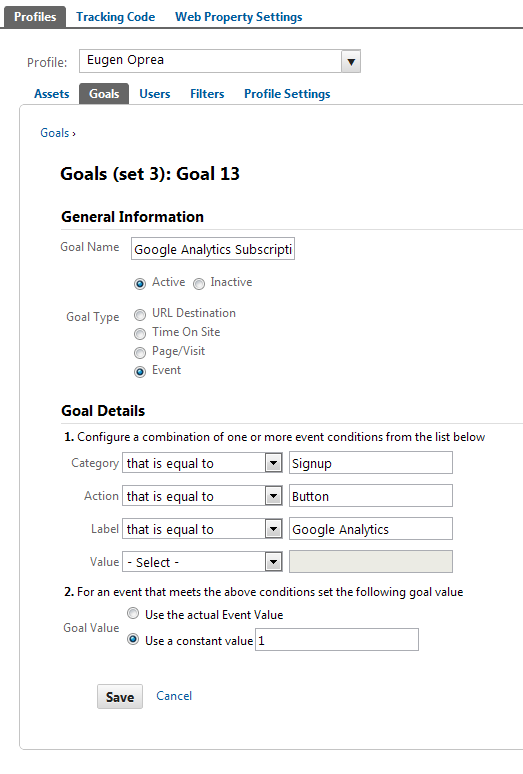
You can setup goals for all your events, your most important events or none of them. It's your choice if you want to see them only in the [Events] section or get more insights about how different traffic sources are sending you visitors that complete actions differently.
Check your Google Analytics Reports
Once the event tracking is properly setup on your website and you have added the goals, you should allow a couple of days to get data into your Google Analytics account.
Then you can see data under the [Content] section > [Events] > [Overview]. Here you can see different metrics for your top events.
You can display the total number of events by [Event Category], [Event Action] or [Event Label].
At the same time, you can also drill down into a specific event category, check multiple actions and see the total number of events for each label.
In my example I have only one category, one action, but multiple labels and I can compare them to see which form performs better.
Additionally, if you have also setup events as goals, you can see how other metrics compare to each other for each goal.
So you can see for example what sources are sending you visitors who subscribe and what forms those visitors use. You will be able to see if your "below the post" signup form or call to action performs better than the one in your sidebar.
Using event tracking goals you are able to analyze different conversion rates for each goal, based on different traffic sources, visitors, demographics, landing pages and much more.
Your thoughts
Now that you know how to use event tracking in Google Analytics to measure calls to action, please use the form below to share with us the process and the outcomes of this action. What was difficult and what additional insights do you get now?
Related Posts:

Leave a Reply

-ER, Association Marketing Director